
Two years ago we wrote an article on how to reliably obtain GA4 specific parameter values for ex. session_id, client_id. Google recently introduced new built-in variables—Analytics Client ID, Analytics Session ID, and Analytics Session Numberー making this whole process straightforward. You can learn more about them in Google’s documentation https://support.google.com/tagmanager/answer/7182738
In this post, we’ll walk you through how to implement these variables step by step.
3. Set up Custom Dimension in GA4
6. Key Learnings and Observations
1. Enable variables in GTM
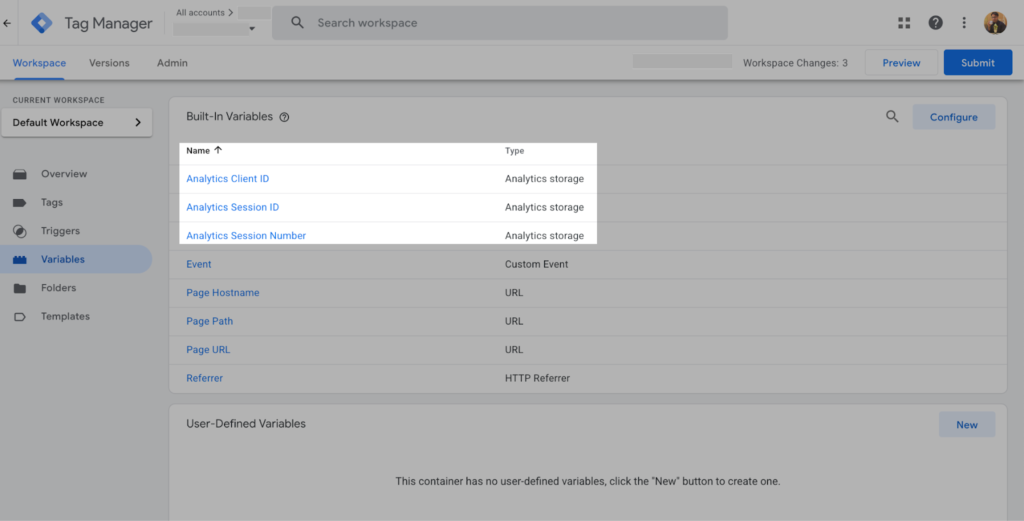
First, these variables are not enabled by default in the GTM Variables section, so you’ll need to enable them manually.
To do this,
- click Variables in the left-hand menu.
- In the Built-In Variables section, click Configure,
- then select the checkboxes for each of the three required variables.

2. Modify GA4 tags
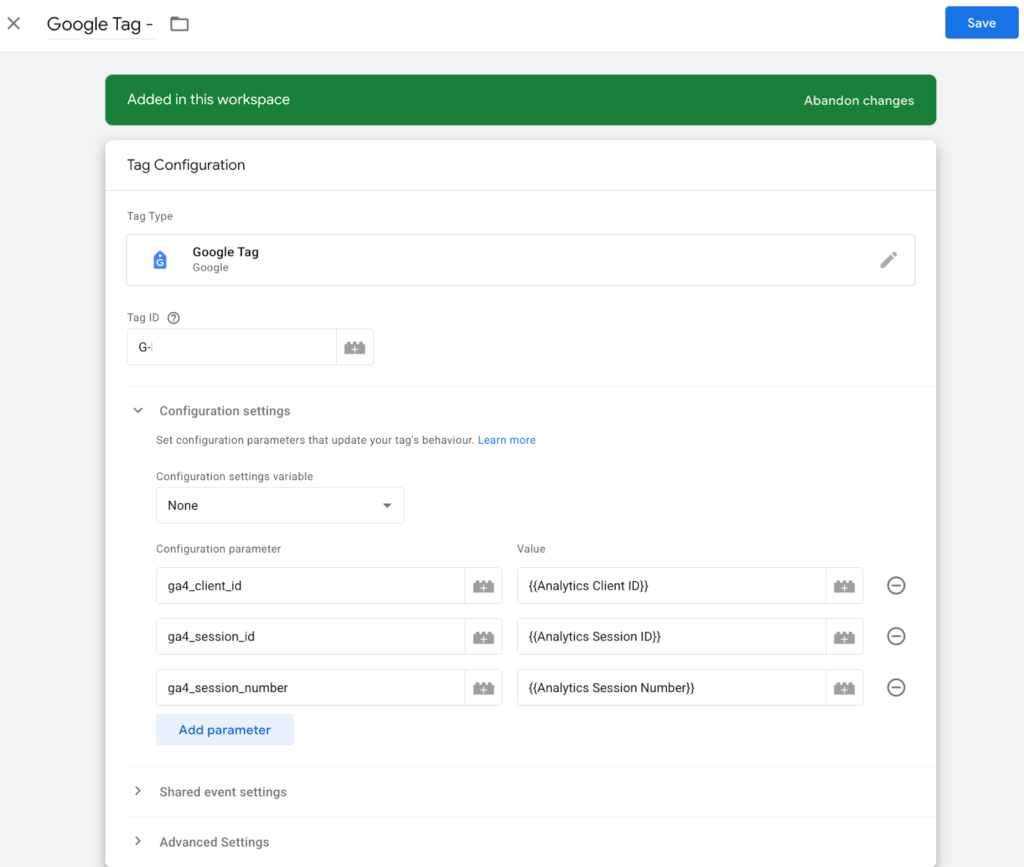
Next, update your GA4 tags to include these variables when GA4 events are triggered.
You can do this in one of two ways:
- Add the variables to the Google Tag, so all tags that use this configuration automatically inherit and pass them when they fire.
- Or, add the variables only to specific events where you want these values to be sent.
Here, for simplicity and demonstration purposes, we include these variables in the Google Tag. We set up custom event parameters ga4_client_id, ga4_session_id & ga4_session_number to store these values into but you can choose any parameter name as you prefer.
3. Set up Custom Dimension in GA4
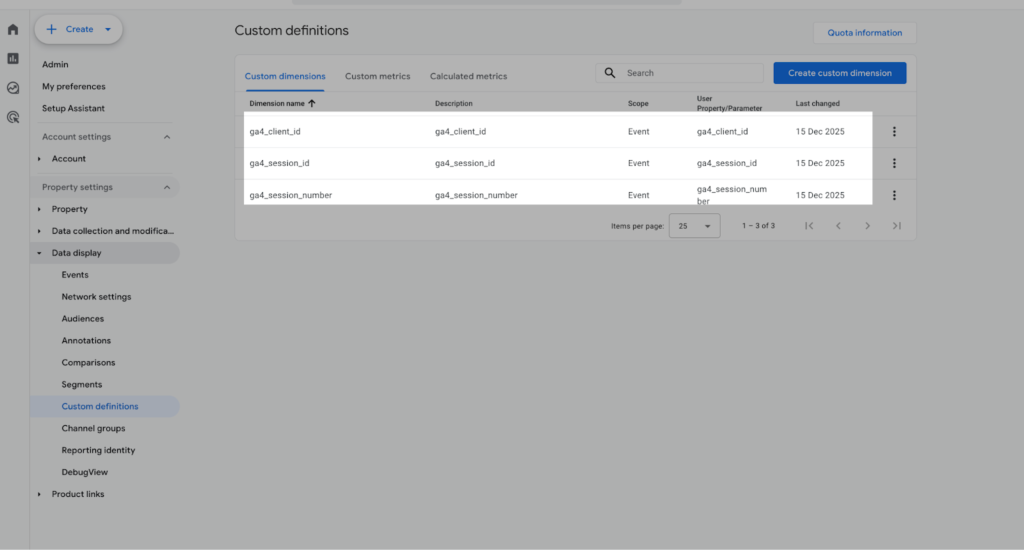
If you wish to report these values in GA4 reports (standard reports, Explorer etc.), you need to set up custom dimensions in GA4, for each of these custom event parameters (ga4_client_id, ga4_session_id & ga4_session_number)
4. Preview test
As you launch GTM using the new setup in Preview mode, you’ll be able to see the newly introduced built-in variables in action under the Variables section.

If you have multiple GA4 streams (Measurement IDs) configured on the page, all of those values are automatically captured by these variables. Please note, for the purpose of this blog, the GA4 Measurement ID values shown here have been obfuscated in the screenshot
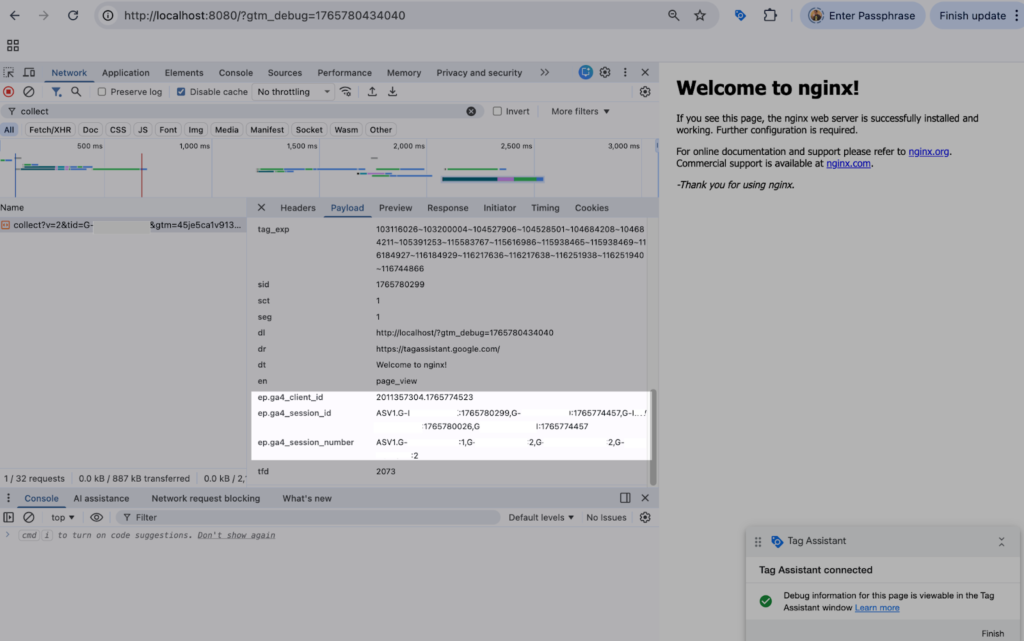
If you are satisfied with the set up, you can now go ahead and publish the GTM container
5. GA4 Explorer reporting
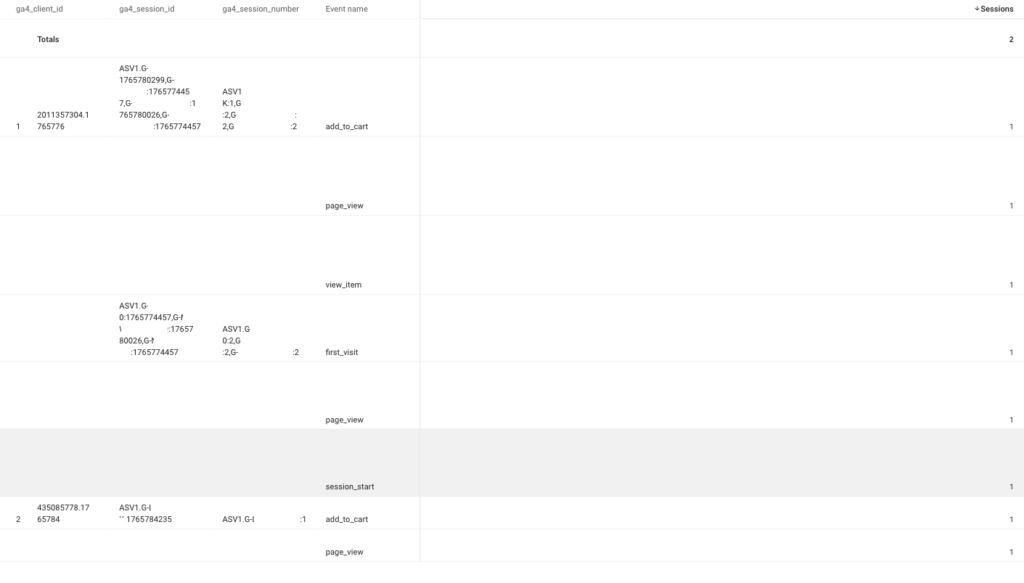
After the overnight processing completes, pulling the Explorer report in GA4 shows these parameter values available in the GA4 UI under the custom dimensions we created in Step 3. At this point, we can aggregate individual events at the user and session ID level.
You might notice that the format of Session ID and Session Number looks slightly different from what’s exported to BigQuery. We explain why this happens in the next section.
6. Key Learnings and Observations
As we worked through the implementation, we observed that with this update, Google has made it fairly straightforward and quick to pass Client ID and Session ID values to GA4 events for a basic setup. However, this simplicity starts to break down (rather needs additional steps) once the configuration becomes more complex.
The Analytics Client ID follows the <1234xxxxx.5678xxxx> format—the same format for Client ID exported to BigQuery. As a result, the value returned by this GTM variable can be used as-is and passed directly into the GA4 Event tag without any additional transformation.
The Analytics Session ID value is returned in the format <ASV1.GA4-MEASUREMENT-ID:17657xxxxx>, which means it requires additional transformation before it can be passed into the GA4 Event tag in the format 17657xxxxx—the same format for Session ID exported to BigQuery.
Additionally, when multiple web streams (i.e., multiple Measurement IDs) are present on the page, the variable outputs all corresponding values separated by commas (“,”). This necessitates further processing to ensure that only the Session ID associated with the relevant Measurement ID—against which the event is being sent—is included.
Same is the case with Analytics Session Number value.
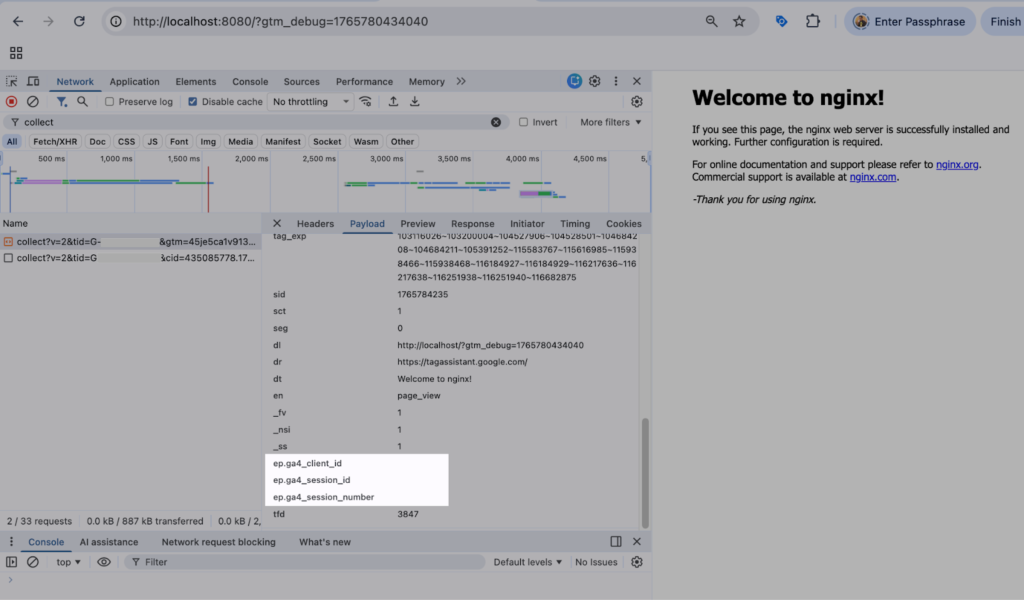
We also observed that these variables simply read values directly from the browser cookies and pass them through. As a result, for first-time visitors to the website—where these cookies do not yet exist—the variables return blank values. These values only become available from subsequent Google Tag event firings onward.

Conclusion
In conclusion, Google has made it fairly straightforward and quick to pass Client ID and Session ID values to GA4 events. But the bigger question is, even if you can set it up, more easily now, should you do this ? Our opinion remains the same as we highlighted in previous article
- These values are already exported to BigQuery, if you need more granular reporting.
- session_id, client_id are essentially random numbers. Independently, they may not classify as PII, but depending how you use these and stitch with other user data these might classify as PII and therefore may bring legal, privacy risk under GDPR, CCPA
- Lastly, depending on user traffic volume, these can be high cardinality dimensions (dimensions with high number of unique values assigned to it) for your webstream and can affect your standard reports in GA4. In GA4, in-case dimensions exceed the maximum threshold of unique value in one day (currently max 500 unique value for a dimension in one day) GA UI’s standard report aggregates results in the “(other)” row. Even the reports that do not include such high-cardinality dimensions, it will cause every other standard report to be aggregated under (other) as well. So be careful to set up custom dimensions that have a high number of unique values.